Similar to PaperCut on the HVH site, you print your document to a server and then visit the Copier to 'release' the print manually. However instead of a server, you print to Microsoft in the Cloud (who hold it against your user account) and instead of logging into the Photocopier you log into the Microsoft App (by scanning a QR Code) on your Phone and release it from there.
You need to have the Microsoft CoPilot app installed on your phone (or staff iPad). Follow the instructions below the first time. The next time you print, you should be able to use your Camera app, rather than go through the Copilot app each time.
Make sure you are logged into a PC or Laptop with a Staff account, or your own staff laptop.
Select HVH 6F Staff Copier MFC-L8690CDW
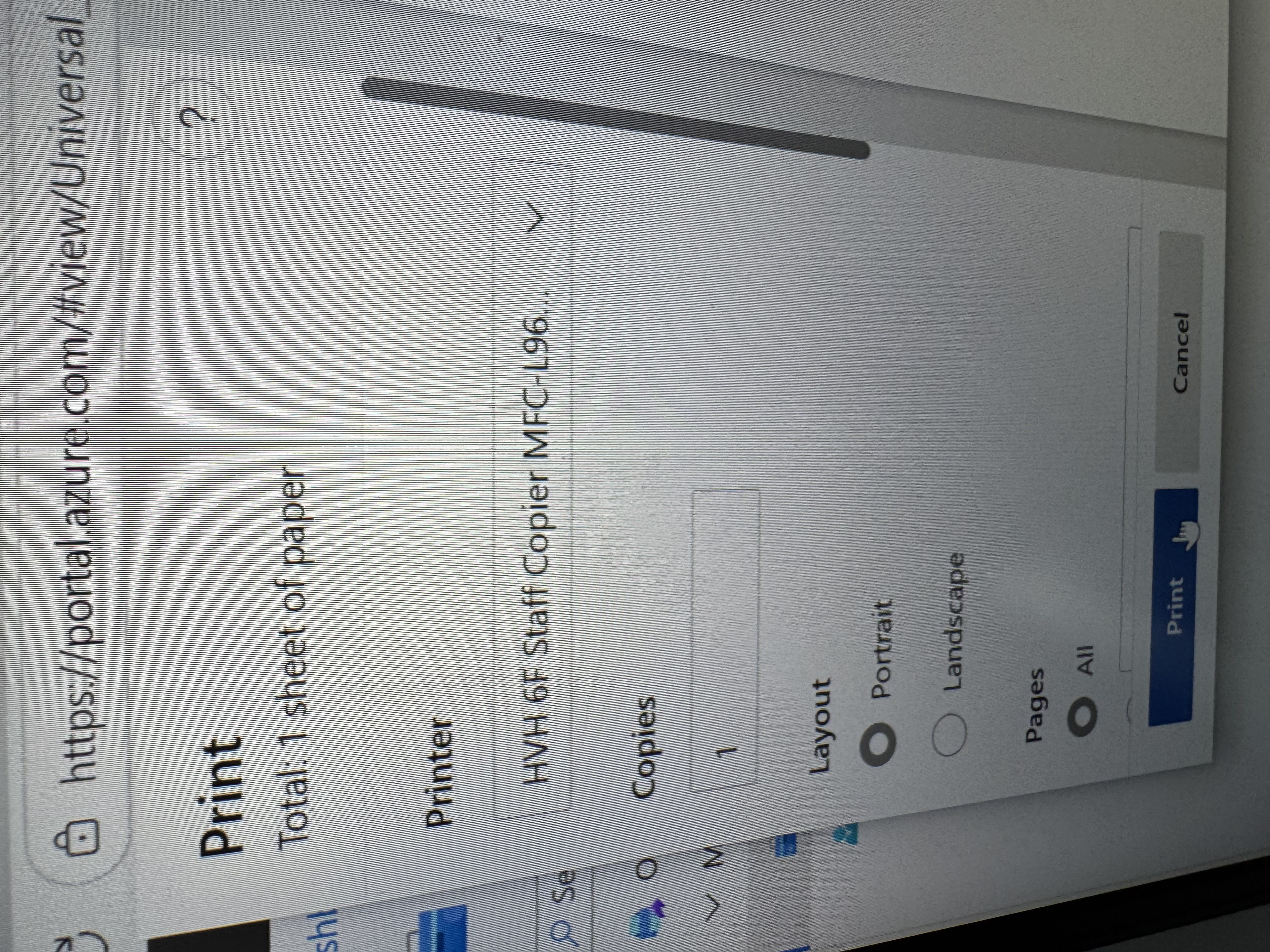
If you cannot find the printer on the device, you will need to install it.
Do this in Settings>Devices>Printers. Check out the support article on this.
Print your document as normal. The Document will be sent to the Cloud and stored in Microsoft 365 until you release it from the printer.
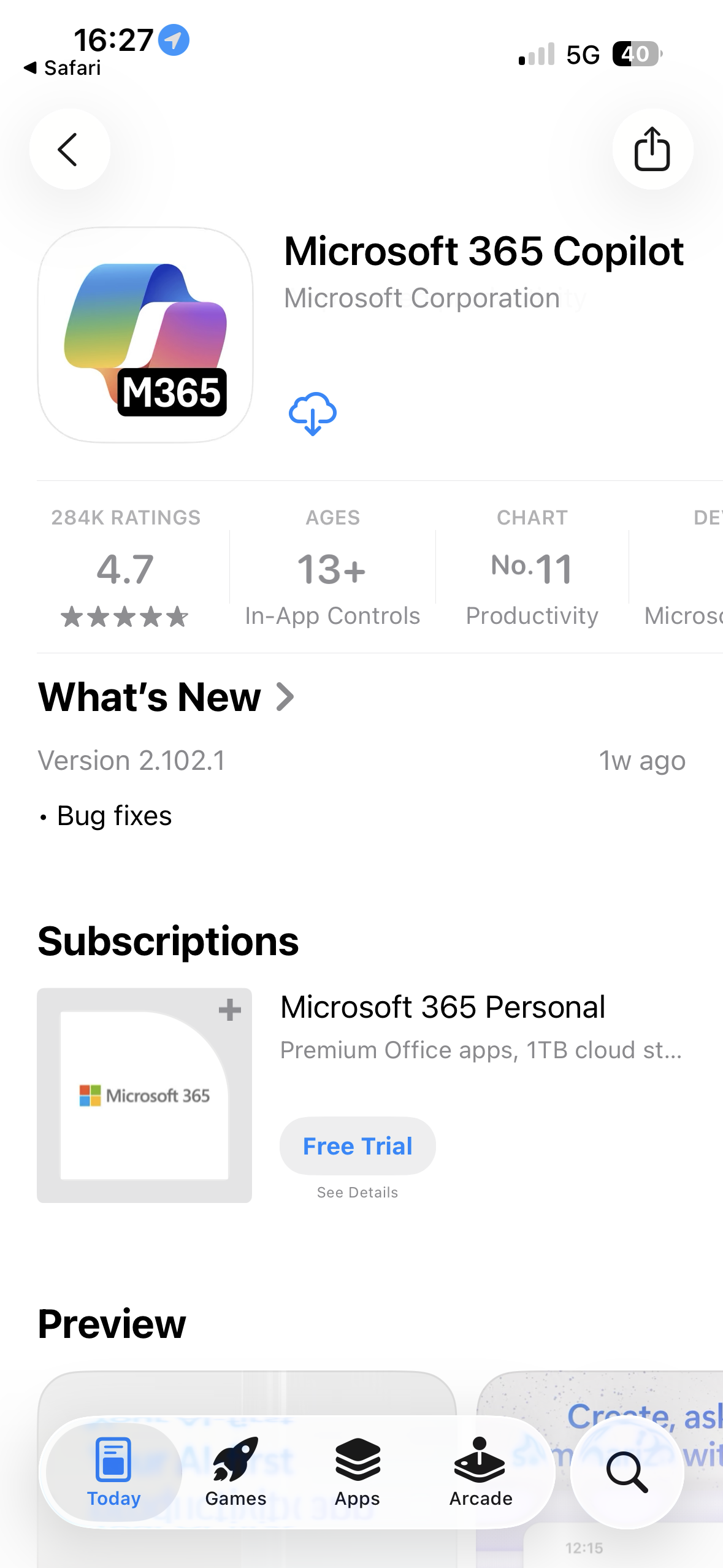
Download the Microsoft 365 Copilot app to your phone or iPad (find it in the App Store or Play Store - staff iPads have this installed by default)
Sign into the App with your school email and password
You may need to use Authenticator if you are doing this outside of HVH or CCHS Wifi networks
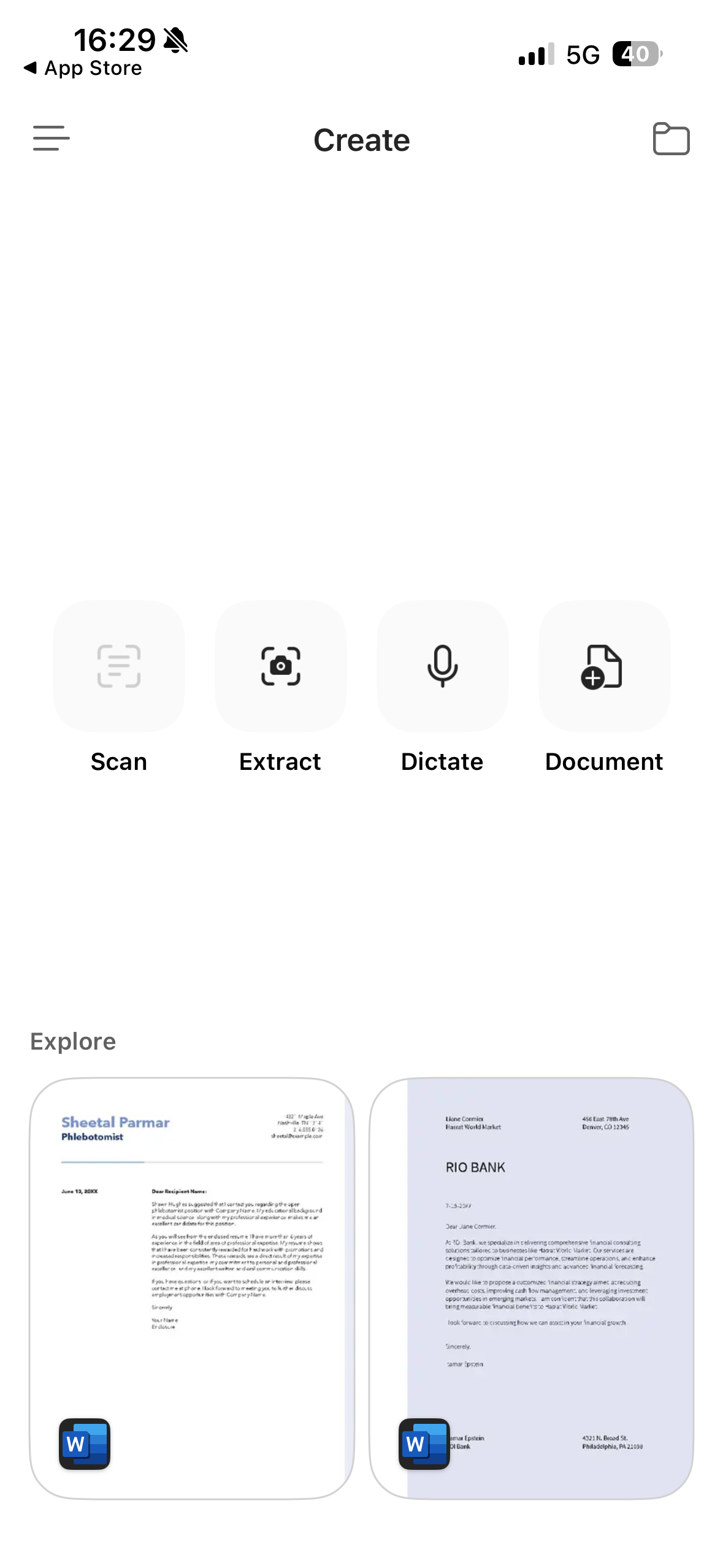
Click Create
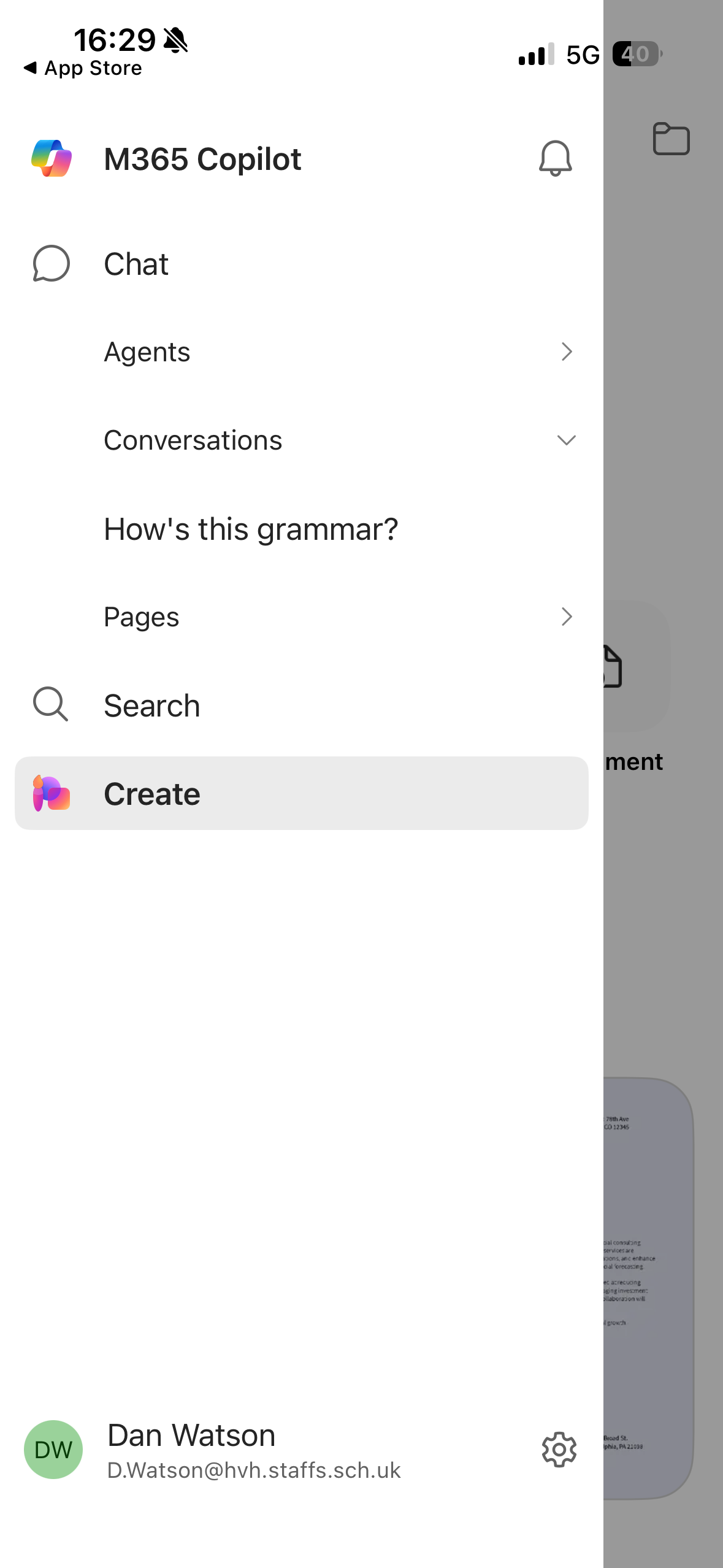
Select Extract 
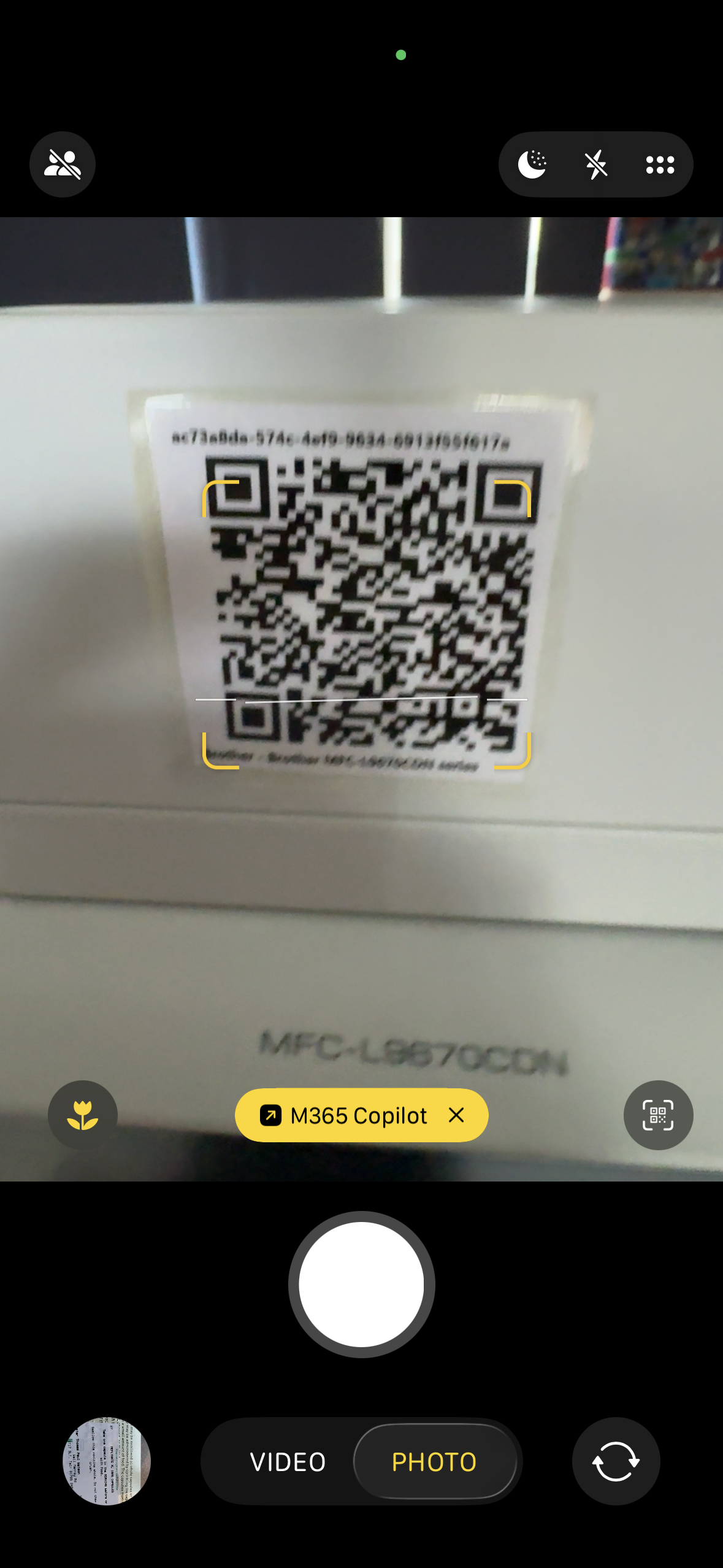
Hover over the QR Code (located on the printer) and select the Blue link that pops up (DON'T take the photo!)
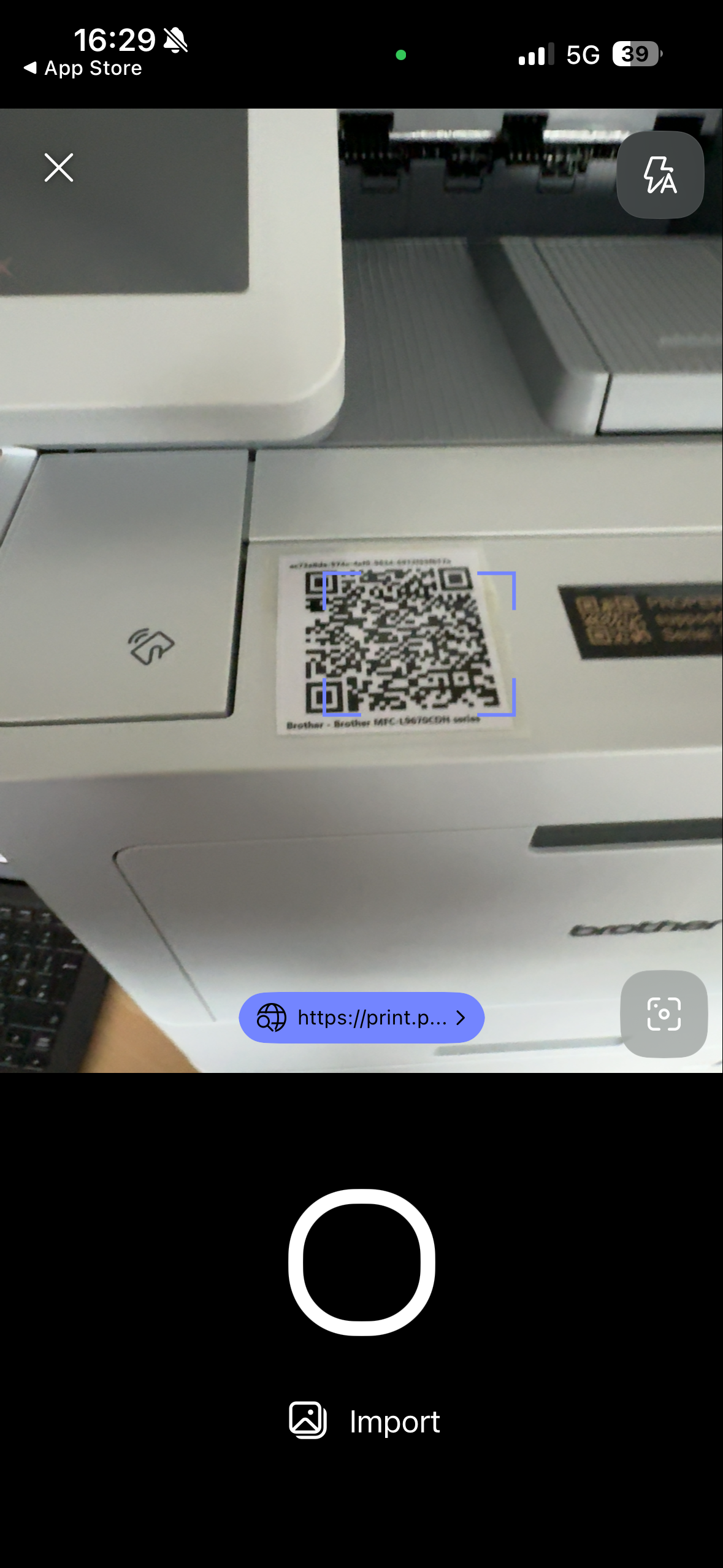
There are QR codes inside of the printer door and also in various places on the Printer and in the Office. They are all the same code so you can use any of them.
You will be taken to the printer menu. Select Next
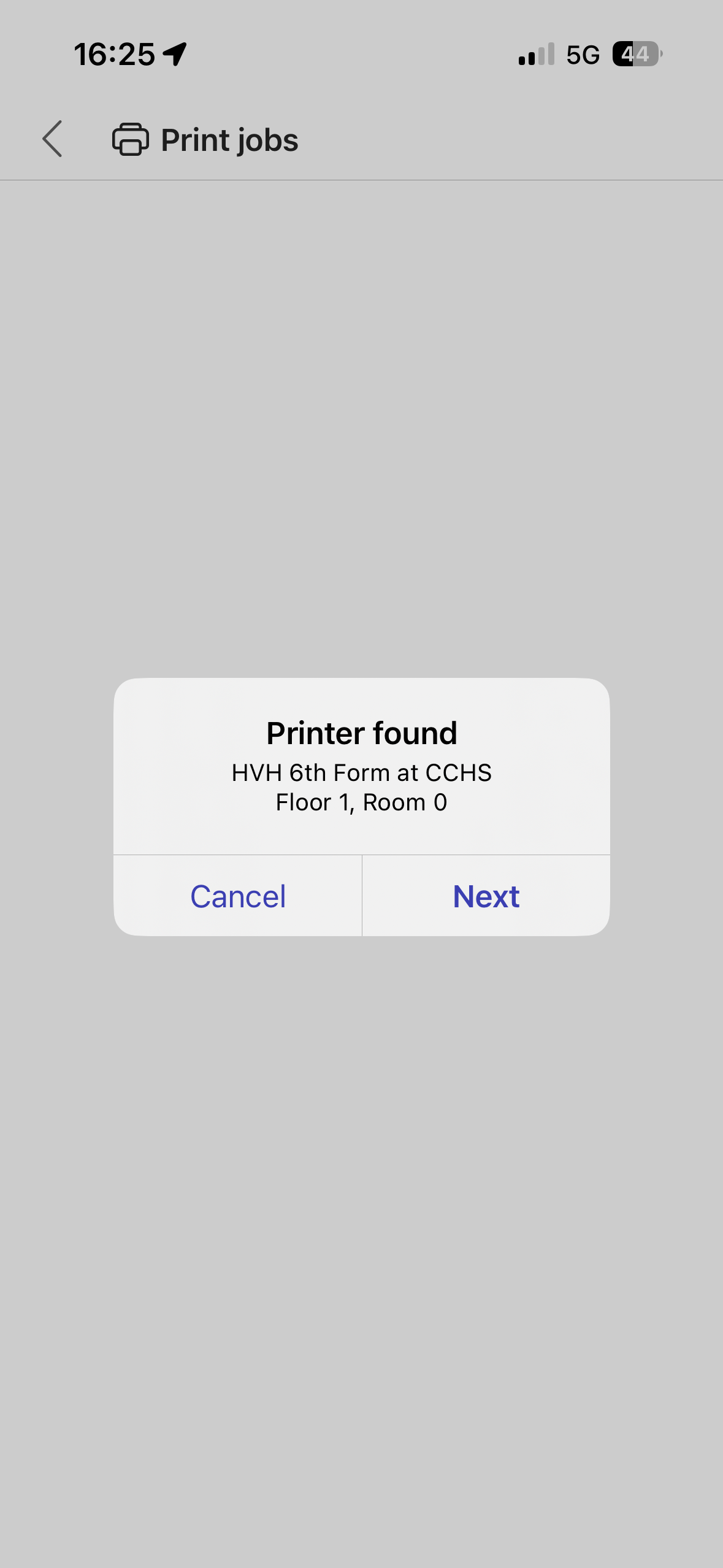
Your prints should be listed - just like on PaperCut on the HVH Printers.
Tick the print(s) you wish to release and tap Send to Print
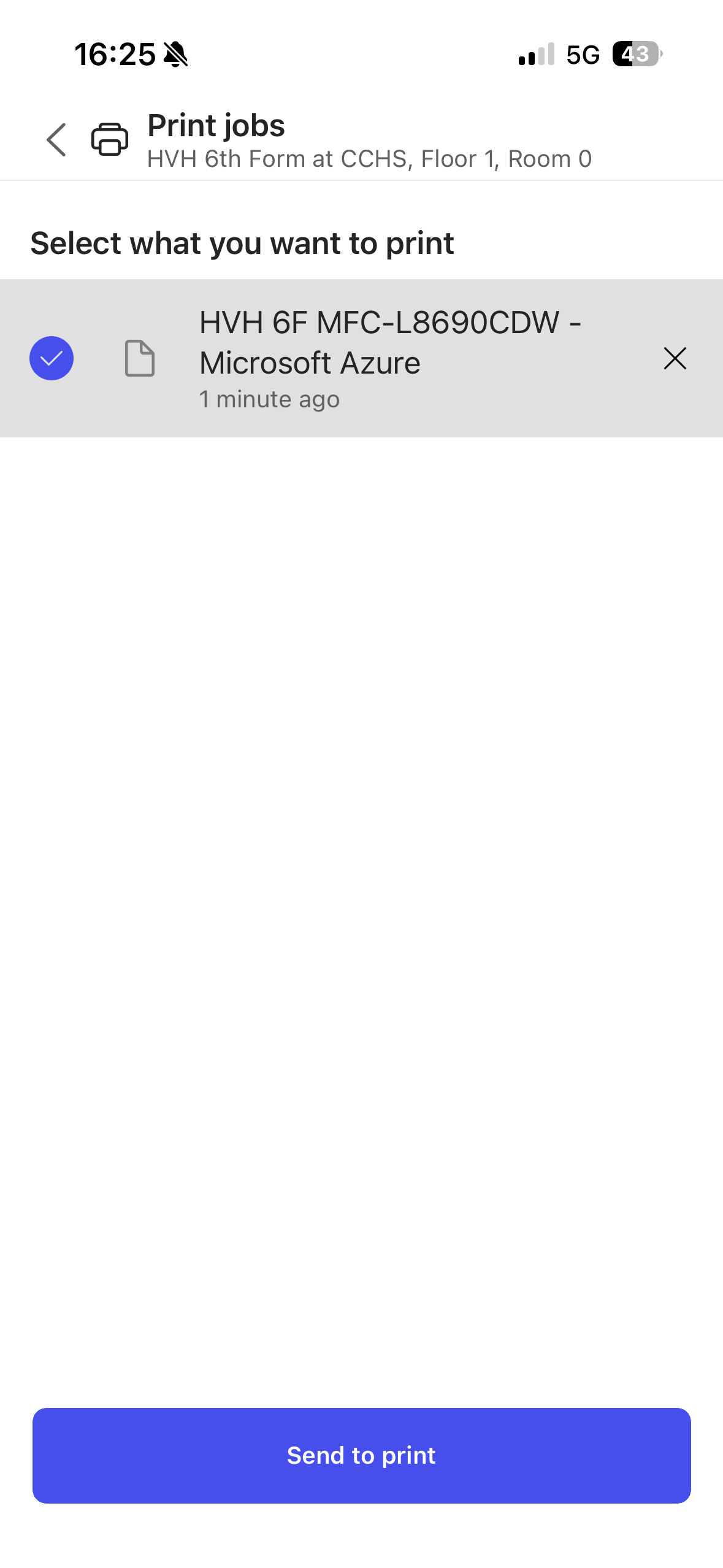
Depending on the internet speeds and the size of your document, it may take a few minutes to appear
The document will be sent down to the printer and it will print.
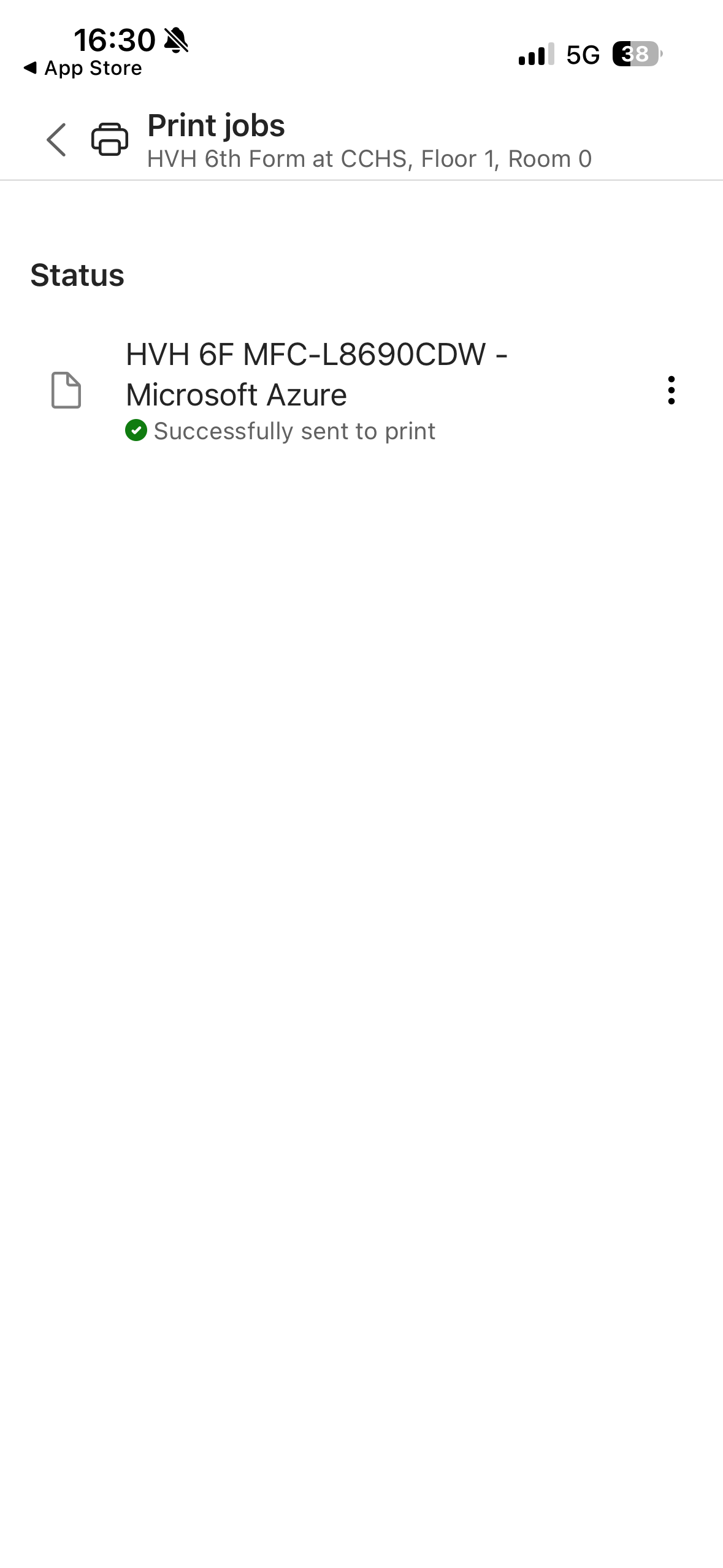
The next time you use the printer, you should be able to use your Camera app (see below for the iPhone screen shot) to scan the QR code, which will then automatically open the Microsoft CoPilot app automatically for you: